Set up your email address using POP in Microsoft Outlook 2013 by following the steps below.
Please make sure that your domain name has already propagated (can be accessed via a web browser), if it hasn't your email will not function.
Make sure you have created your mailbox at https://yourdomain.co.za/cpanel first before configuring Outlook.
You are now ready to set up your email account in MS Outlook 2013
- Open MS Outlook 2013
- Click on File
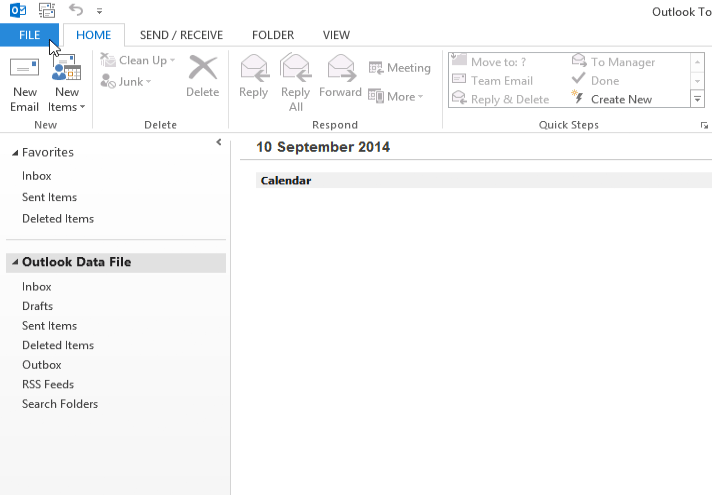
- Now click on "Add Account"

- Select "Manual setup or additional server types" and click "Next"

- On the "Choose Service" window select "POP or IMAP" and click Next.

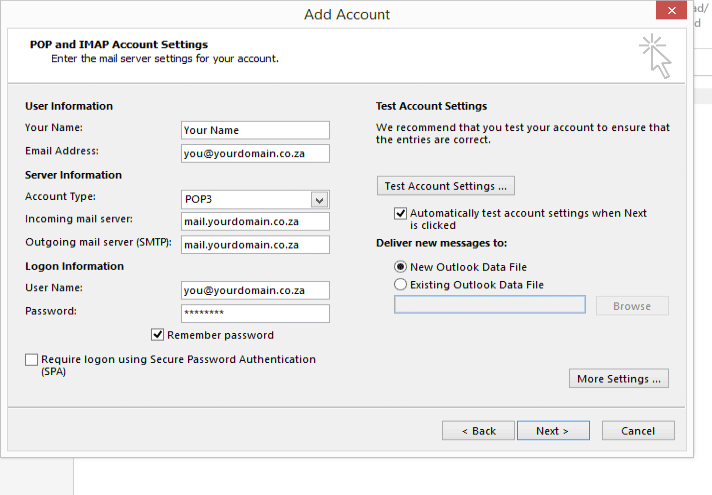
- Enter your own details as per the example below, replace your name and your actual domain name and click on "More Settings"
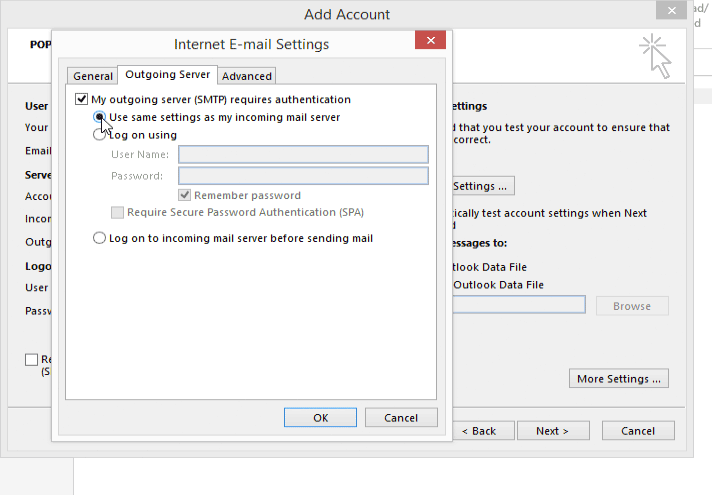
- Select the "Outgoing Server" tab and select "Use same settings as my incoming mail server" and now click on the "Advanced" tab.
- Select the "Advanced" tab:
- Change the "Incoming server " port to 995
- Change the "Outgoing server (SMTP)" port to 465
- Select TLS/SSL from the encrypted dropdown
- You will now be back at the "Add Account" screen. Now click on "Next" to finish the setup.
- Click "Next" to test and complete the setup
