Your can set up your email address using IMAP in Microsoft Outlook 2007 by following the steps below.
Please make sure that your domain name has already propagated (can be accessed via a web browser), if it hasn't your email will not function.
Make sure you have created your mailbox at https://yourdomain.co.za/cpanel first before configuring Outlook.
*(Outlook 2007 has been depreciated and reached its end of support on October 10, 2017)
You are now ready to set up your email account in MS Outlook 2007
- Open MS Outlook 2007
- Select Tools > Account Settings

- On the E-mail Accounts wizard window, select "New"

- On the "Auto Account Setup" page select "Manually configure server settings or additional server types"

- On the "Choose E-mail Service" page select "Internet E-mail" and click "Next"

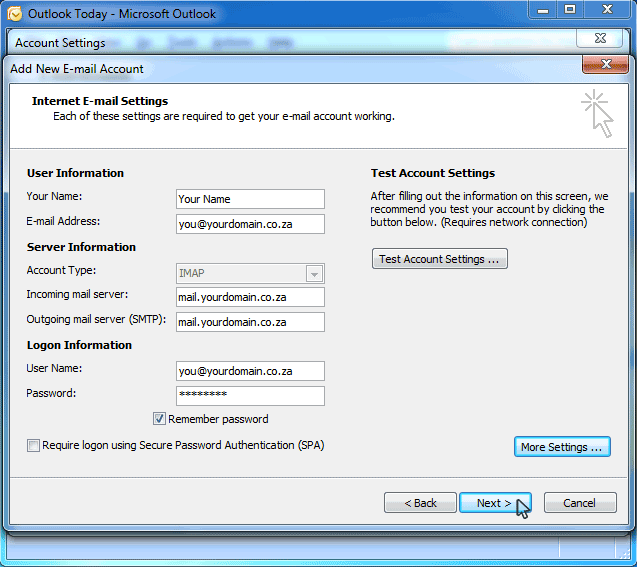
- On the Internet E-mail Settings (IMAP) window, enter your information as below, replacing Your Name with your actual name and yourdomain.co.za with your actual domain name, then click "More Settings"

- After clicking on "More Settings", select the "Outgoing Server" tab and select "My outgoing server (SMTP) requires authentication."

- Select the "Advanced" tab:
- Change the "Incoming server " port to 993
- Change the "Outgoing server (SMTP)" port to 465
- Select TLS/SSL from the encrypted dropdown
- You will now be back at the "Internet E-mail Settings" screen, just click "Next"
- Now, click Finish
