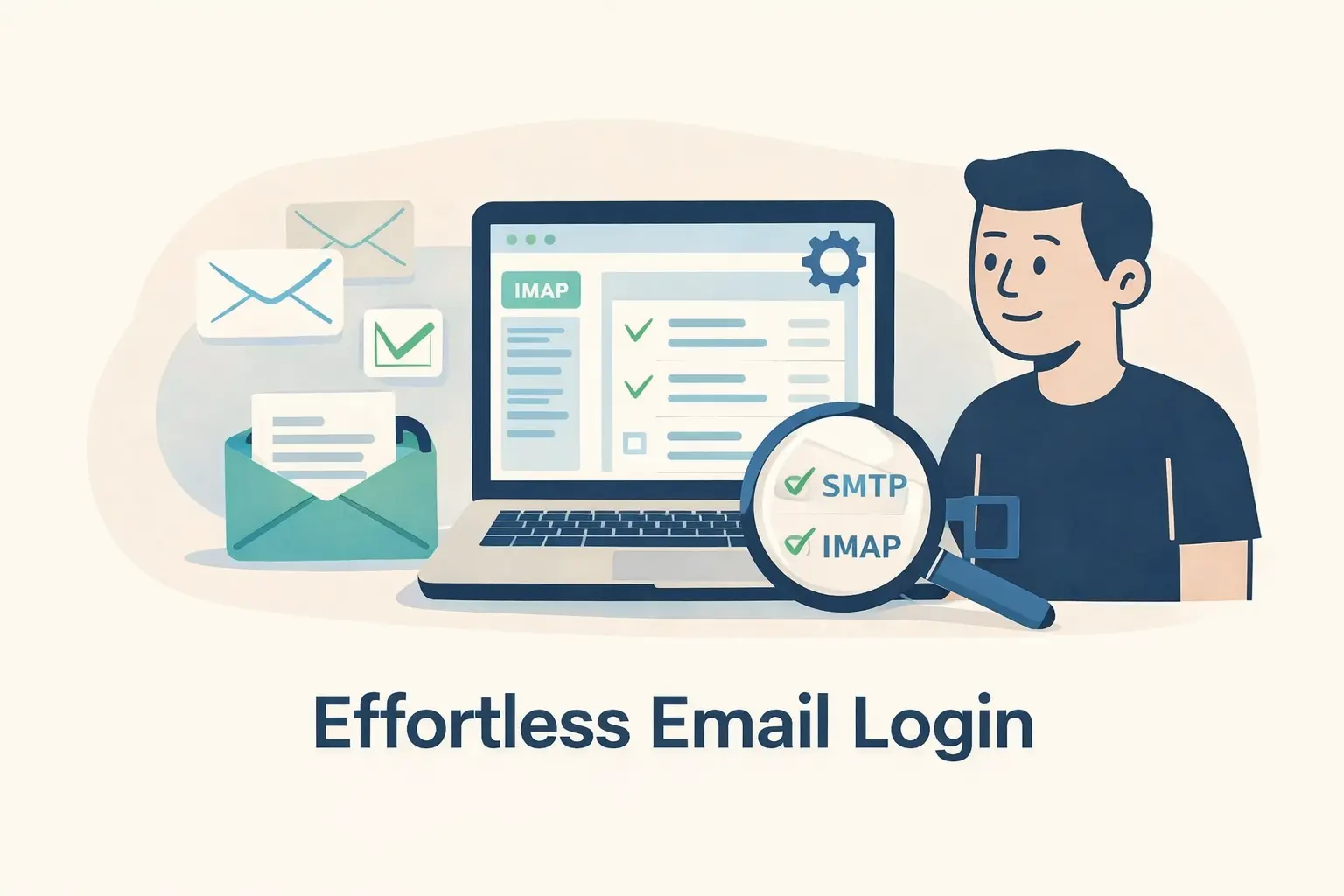
This guide explains email login South Africa settings for MyLife, MWEB, UKZN and Outlook, including IMAP and SMTP configuration. Navigating through the digital world can sometimes be daunting, especially when accessing various email platforms. Understanding how to manage email logins effectively ensures seamless communication and productivity. If you’re looking for guidance on accessing mylife, MWEB email accounts, Afrihost client zones, or setting up UKZN email with Outlook, this article will provide you with straightforward instructions to simplify these processes.
Accessing your MWEB email account is straightforward. Here are the steps you need to follow:
- Visit the MWEB Webmail Login Page: Open your browser and go to the MWEB webmail login page. You can do this by typing in the MWEB website URL and navigating to the webmail section.
- Enter Your Credentials: Input your MWEB email address and the associated password in the designated fields.
Access Your Inbox: Click on the “Login” button, and you should be directed straight to your inbox, where you can manage your emails.
By following these steps, you can ensure that you can access your MWEB emails without any hassle.
For Afrihost users, accessing the Client Zone is crucial for managing your account details and services. Here’s how you can do it:
- Go to the Afrihost Website: Open your browser and visit the Afrihost homepage.
- Navigate to Client Zone: Look for the “Client Zone” link, typically located at the top of the page, and click on it.
- Log In: Enter your Afrihost email address and password. If you’ve forgotten your password, there’s an option to reset it.
- Explore Your Account: Once logged in, you can manage your services, view invoices, and update your account details.
Accessing your Afrihost Client Zone is essential for keeping track of your internet services and ensuring everything runs smoothly.
If you need a domain name for a personal touch, check out Domain Registration
Email Login South Africa for Outlook Users
For UKZN students and staff, setting up your university email in Outlook can streamline communication. Here’s a quick guide:
- Open Outlook: Launch the Outlook application on your computer.
- Add New Account: Go to the “File” tab and select “Add Account.”
- Enter Email Details: Type in your UKZN email address and click “Connect.” Outlook will attempt to configure the settings automatically.
- Manual Setup (if necessary): If automatic setup fails, choose “Manual setup” and enter the server settings provided by UKZN IT services.
- Finish Setup: Once configured, click “Finish” to complete the setup process.
Having your UKZN emails accessible through Outlook makes it easier to manage your academic and administrative communications.
By understanding these login processes, you can efficiently manage your email communications, whether through mylife, MWEB, Afrihost, or UKZN.
If you prefer a custom domain-based address, explore our professional email hosting options.
Proper email management ensures that you stay connected and productive in your personal and professional life.